
Do you use Indian Visa Autofill Pro on multiple computers or need to move your saved profiles to another account? Have you ever logged in on a different computer and wondered why your existing BGD profiles, passport profiles, or other saved information were not available?
Transfer Indian Visa Autofill Pro Profiles Between Computers — 100% Free
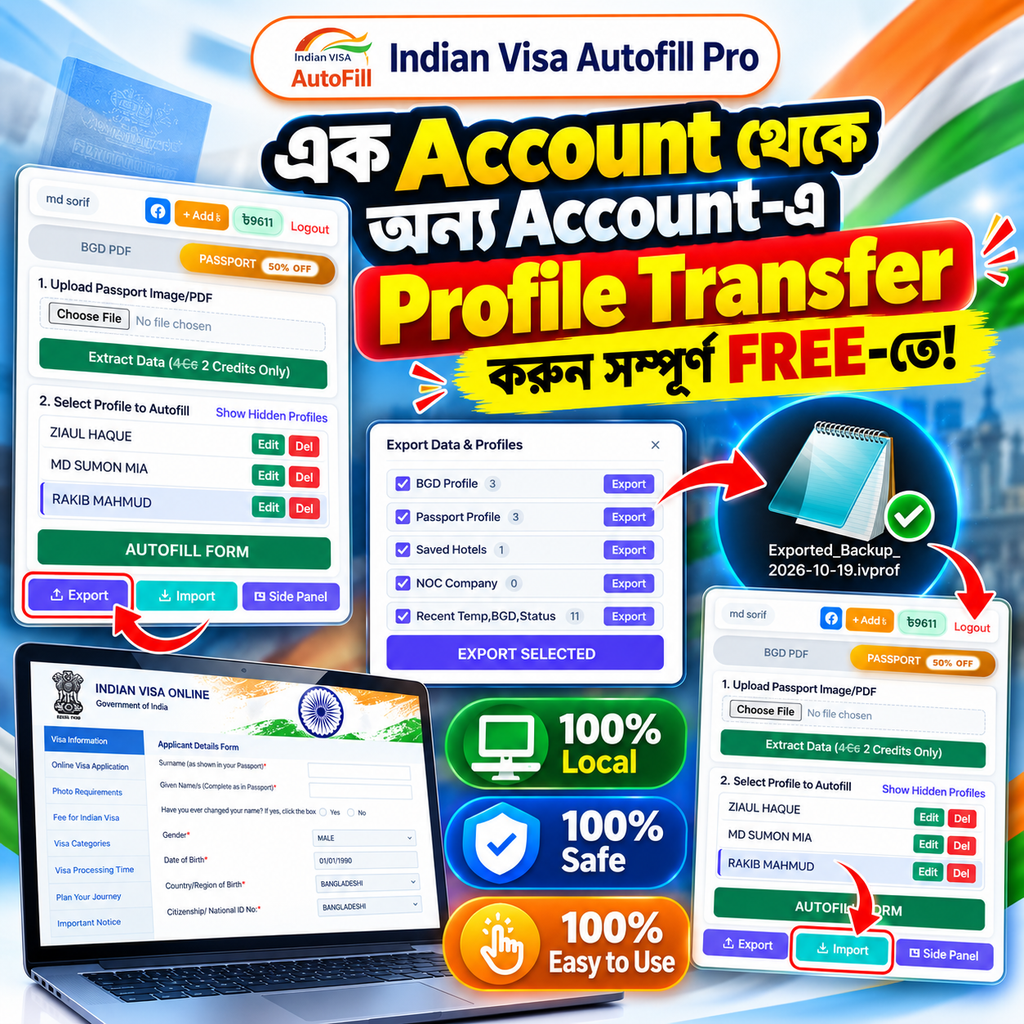
You are not alone. This is one of the common questions users ask about Indian Visa Autofill Pro.
The reason is simple: your saved profiles are stored locally in your browser rather than being automatically synchronized to a central user database. Logging in to your account on another computer does not automatically transfer the locally saved information.
To make profile management easier, Indian Visa Autofill Pro provides a convenient Export and Import feature that allows you to transfer supported profile data between computers and accounts for free.
Whether you have 100 profiles, 1,000 profiles, or thousands of records, you can use the export and import workflow to move your supported data without manually recreating every profile.
Why Don’t My Profiles Appear When I Log In on Another Computer?
Many users expect their saved profiles to appear automatically whenever they log in to their Indian Visa Autofill Pro account.
However, account login and profile synchronization are two different things.
Indian Visa Autofill Pro keeps saved profile information in the browser’s local storage. This means that the profiles available in one browser may not automatically appear in another browser or on another computer.
For example:
- You save several BGD profiles on your office computer.
- You log in to Indian Visa Autofill Pro on your home computer.
- Your account login works, but your previously saved profiles are not automatically available there.
This is expected behavior when profile data is stored locally instead of being synchronized through a central database.
The solution is to export your profiles from the original browser and import the exported backup file into the destination environment.
Why Indian Visa Autofill Pro Uses a Privacy-Focused Profile System
When dealing with visa applications, personal information deserves special attention.
BGD documents, passport details, applicant information, contact details, and related application records may contain sensitive personal data. Protecting this information should be an important consideration when choosing a visa autofill tool.
One approach to reducing privacy risk is to avoid collecting and centrally storing users’ profile information unnecessarily.
Indian Visa Autofill Pro follows a local profile-storage approach: saved profiles remain in the browser’s local storage rather than being automatically synchronized to a central profile database.
1. Your Saved Profiles Stay in Your Local Browser Storage
Your saved profile data is associated with the browser where you created or imported it. Signing in to your account elsewhere does not automatically make that local data available on the new device.
This separation helps users understand where their saved profiles are maintained and why transferring them requires an explicit export and import process.
2. No Central Database of Saved Profiles for Automatic Synchronization
Indian Visa Autofill Pro does not maintain a central user-profile database for automatically synchronizing these locally saved profiles across devices.
This design reduces the amount of stored profile information concentrated in one central location. A central database containing large volumes of sensitive user profiles could become a high-value target if its security were compromised.
Reducing unnecessary central data storage is therefore an important privacy consideration.
3. Data Minimization Helps Reduce Exposure
The principle of data minimization is straightforward: systems should avoid collecting and retaining personal information that is not necessary for their intended purpose.
By keeping saved profiles local instead of automatically syncing them to a central profile database, Indian Visa Autofill Pro limits the concentration of this profile data.
Important security clarification: Local storage is not an absolute guarantee against data loss or unauthorized access. Information stored in a browser may still be exposed if a computer is compromised, a browser profile is accessed by another person, or malicious software gains access to the device. Users should protect their devices and exported backup files accordingly.
How to Export Indian Visa Autofill Pro Profiles
The Export feature allows you to create a backup file containing the supported data you select.
Follow these steps to export your profiles.
Step 1: Open Indian Visa Autofill Pro
Open your browser and launch the Indian Visa Autofill Pro extension where your existing profiles are available.
Make sure you are using the original browser or computer that contains the profiles you want to transfer.
Step 2: Click the Export Button
Find the Export button in the extension interface and click it to open the Export Data & Profiles panel.
Step 3: Select the Data You Want to Transfer
The export panel lets you select supported data categories. Depending on your available data, these may include:
- BGD Profile
- Passport Profile
- Saved Hotels
- NOC Company
- Recent temporary, BGD, and status-related data
Select the categories you want to transfer. If you want to export all available supported categories, select them all.
Step 4: Click Export Selected
After choosing the required categories, click Export Selected.
The extension will generate an export file containing the selected supported data.
Keep this file somewhere secure. Depending on the information included, the exported backup may contain sensitive personal details.
How to Import Profiles Into Another Account or Computer
After exporting your data, you can import the backup file into another supported browser environment.
Step 1: Open Indian Visa Autofill Pro on the Destination Computer
Open the extension on the computer or browser where you want to use the profiles.
Step 2: Click Import
Locate the Import button in the extension interface.
Step 3: Select Your Exported Backup File
Choose the backup file you previously exported from the original computer.
Make sure you select the correct file and keep an additional secure backup if the data is important.
Step 4: Complete the Import Process
Follow the extension’s on-screen instructions to complete the import.
Once the supported data has been imported successfully, your transferred profiles should become available in the destination environment.
Tip: Before deleting data from the original computer or removing the original browser profile, verify that the imported profiles are present and usable.
Can I Transfer 100, 1,000, or 10,000 Profiles?
Indian Visa Autofill Pro’s Export and Import feature is designed to make moving supported profile data easier, including for users who manage many profiles.
Whether you manage a small number of applicants or a large collection of profiles, the export workflow can help you avoid recreating records manually.
The practical number of profiles you can transfer in a single operation may depend on browser resources, available memory, file size, and the amount of data involved. Very large transfers should be tested carefully before removing the original data.
There is no additional charge for using the profile export and import feature.
This makes it useful for visa agencies, computer shops, travel agents, and other users who need to move supported profile data between workstations.
Is the Indian Visa Autofill Pro Profile Transfer Feature Free?
Yes. The profile export and import feature is available free of charge.
You can export your selected supported data, move the generated file to another computer, and import it into another supported environment without paying an additional profile-transfer fee.
The feature is particularly useful when:
- You replace an old computer with a new one.
- You move from a home computer to an office workstation.
- You need to transfer profiles to another supported browser environment.
- You want to keep a backup of your saved profiles.
- You organize your work across multiple computers.
The purpose is to make profile management more convenient without requiring users to manually recreate all their saved records.
Important Security Tips for Exported Profile Files
Export and import makes profile migration easier, but users should handle backup files responsibly.
Because an exported file may contain personal information, treat it as confidential.
Follow these recommendations:
- Keep backup files private. Do not send them to people who do not need access to the information.
- Use trusted storage. Save files on a device or storage location you control.
- Avoid public computers. Do not leave exported files on shared or public workstations.
- Protect your device. Use appropriate operating-system security and keep your browser updated.
- Verify imports. Confirm that your profiles are available on the destination computer before deleting the original copy.
- Remove unnecessary copies securely. When you no longer need a backup, delete it from locations under your control and consider whether other copies exist.
Remember that local storage and local backup files are separate from automatic cloud synchronization. A local-storage design reduces centralized data retention, but it does not remove every possible device-level security risk.
Who Can Benefit From Indian Visa Autofill Pro Profile Transfer?
The Export and Import feature can be useful for several types of users.
Visa Agencies
Agencies that manage numerous applicant profiles can move supported data when changing computers or reorganizing their workstations.
Computer Shops
Computer shops that assist customers with Indian visa applications may find profile migration useful when changing devices or setting up a new workstation.
Travel Agents
Travel agents can use the feature to move supported saved information without manually entering every profile again.
Individual Applicants and Regular Users
Individuals who change computers or browsers can use the export and import process to move their supported saved data.
Frequently Asked Questions (FAQ)
Why are my profiles missing after logging in on another computer?
Your saved profiles are stored in the original browser’s local storage. Account login does not automatically synchronize this local data to another computer. Export your profiles from the original browser and import them into the destination environment.
Does Indian Visa Autofill Pro automatically sync my saved profiles?
No. The saved profile data covered by this workflow is stored locally rather than being automatically synchronized through a central user-profile database.
Is profile transfer free?
Yes. The Export and Import feature does not have an additional profile-transfer fee.
Can I transfer BGD and Passport profiles?
Yes. The export interface supports BGD Profile and Passport Profile categories. Select the categories you need and export the supported data.
Can I export all my profiles at once?
You can select the available data categories in the export panel and use Export Selected. The amount of data that can be handled in one operation may depend on the browser and available system resources.
Does local storage mean my data can never be leaked?
No storage approach can guarantee zero risk under every possible circumstance. Local storage reduces the need to centrally retain users’ saved profiles, but compromised devices, unauthorized browser access, or malicious software can still create risks.
What should I do if I lose my original computer?
If you previously exported a backup, you may be able to import that file into another supported environment. If no backup exists and the original local browser data is unavailable, the profiles may not be recoverable. Keeping a secure backup is therefore important.
Where can I learn more about Indian Visa Autofill Pro?
Visit the official NexSoft Studio website to find product information, updates, and available support resources.
Conclusion: Easy Profile Transfer With a Privacy-Focused Design
Indian Visa Autofill Pro helps users simplify their Indian visa application workflow while keeping saved profiles in local browser storage instead of automatically synchronizing them through a central user-profile database.
Although this means your profiles do not automatically appear when you log in on another computer, the free Export and Import feature provides a practical alternative.
Simply export the supported data from the original browser, transfer the backup file securely, and import it into the destination environment.
Whether you manage 100 profiles or thousands, this workflow can help you move your supported data without manually recreating every record.
Download Indian Visa Autofill Pro, explore its profile-management features, and use the free Export and Import system whenever you need to move your saved profiles.
Visit NexSoft Studio: https://nexsoftstudio.com